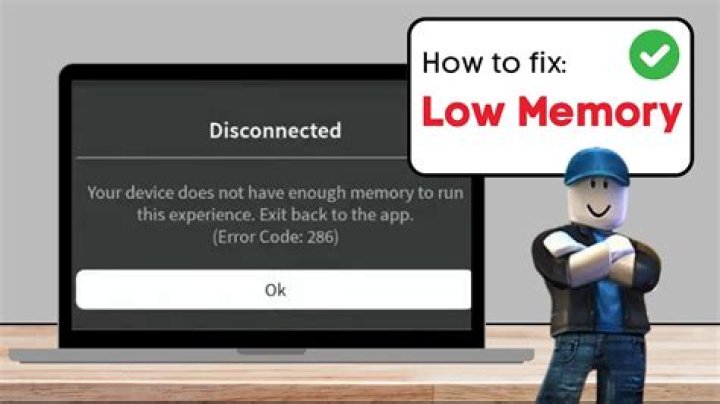
How to fix the dreaded “your device does not have enough memory to run this experience” error in Roblox? Have a look at our guide for various methods.
Roblox is one of the most popular online games out there. It expands its reach with players joining the fun every day. Though it is also a great platform for community-made games, Roblox can surprise you with frustrating errors and issues. And one of the most known problems of the game is the memory error. Here’s your guide on fixing this technical issue with error code 286.
Before we proceed with the methods, let’s talk about why and how this problem happens. Players encounter this problem when the memory of their device has no place to run the game smoothly. Unlike many other errors, this one actually states its reason accurately and gives us a chance to fix it by clearing the memory. Though a bug or a glitch can also cause this error to happen as well. In that case, uninstalling Roblox might be a good idea for a clean installation.
Let’s dive in and find out how you can sort the Roblox memory error and get back to gaming.
How to fix the “Your device does not have enough memory” error in Roblox?
There are certain methods you can try to fix this problem. As it states that your device does not have enough memory, we will start by stopping the applications that work in the background. This allows us to sort the problem out by opening enough space in the device memory.
1. Create enough space for Roblox by closing apps.
Apps or other software running in the background put a workload on your device’s memory. Stopping them through the settings menu might provide enough space for Roblox. You can also uninstall them if you do not use them often. This will also help you get a more smooth experience when using your device.
2. Make sure that the application is updated.
Missing out on updates can result in various technical issues. Even though this one seems like a memory issue, it might as well be happening due to an outdated version of the game.
Most devices download updates automatically. Though it is also possible to turn automatic updates off. You might have disabled this feature to manage your updates manually. Follow the simple steps below to make sure that Roblox is updated.
- Open App Store or Google Play Store.
- Search for Roblox.
- Find the game’s download page.
- Check if there’s a new update.
- You will see the Update button if your app version is outdated.
- Tap on the button to get the latest version of the game.
3. Log out from Roblox.
Log out of the game and log in again to make sure everything runs correctly. This will allow the game to reset itself. Here’s how to log out from your Roblox account. Do not log out from your account if you do not remember your password.
- Open Roblox app and tap on the settings menu.
- Tap on More to access the other settings.
- Scroll down and find the Log out option.
- Close the Roblox app.
- Open it again and log in to your account.
4. Clear your Roblox cache.
You can also clear Roblox data to fix the memory error of the game.
- Head to your device settings.
- Tap on the Application settings.
- Find Roblox in the list.
- Tap on the Clear Data option to clear the cache.
- Do not uninstall the game in this menu. Only tap on the button that removes the old and unused Roblox data.
5. Contact Roblox Support.
Contacting the official support team is another method you can try. The support team of Roblox can guide you very well in certain situations. They can also provide you with errors that can not be found on the internet. Here’s how to contact Roblox support for the “your device does not have enough memory” error.
- Head to the support form from this link.
- Login to Roblox to send a ticket regarding your problem.
- Or enter your date of birth in month/day/year.
- Fill out the form and do not forget to explain the problem thoroughly.
- Add the following information below.
- The current version of your Roblox.
- Your Roblox username.
- Type the error message and add the code as well. “Your device does not have enough memory to run this experience. Error Code: 286”
- Send your support ticket.
Well, these are some of the methods you can try to fix the Roblox memory error. We hope your problem is solved and you are ready to jump back into the game.
